| Home » Categories » Multiple Categories |
0400. How to Create or Edit a DPW Auction |
|
Article Number: 26 | Rating: 5/5 from 3 votes | Last Updated: Fri, Feb 15, 2013 at 6:21 PM
|
|
Be sure to advertise your auction to your buyers on your website or blog!
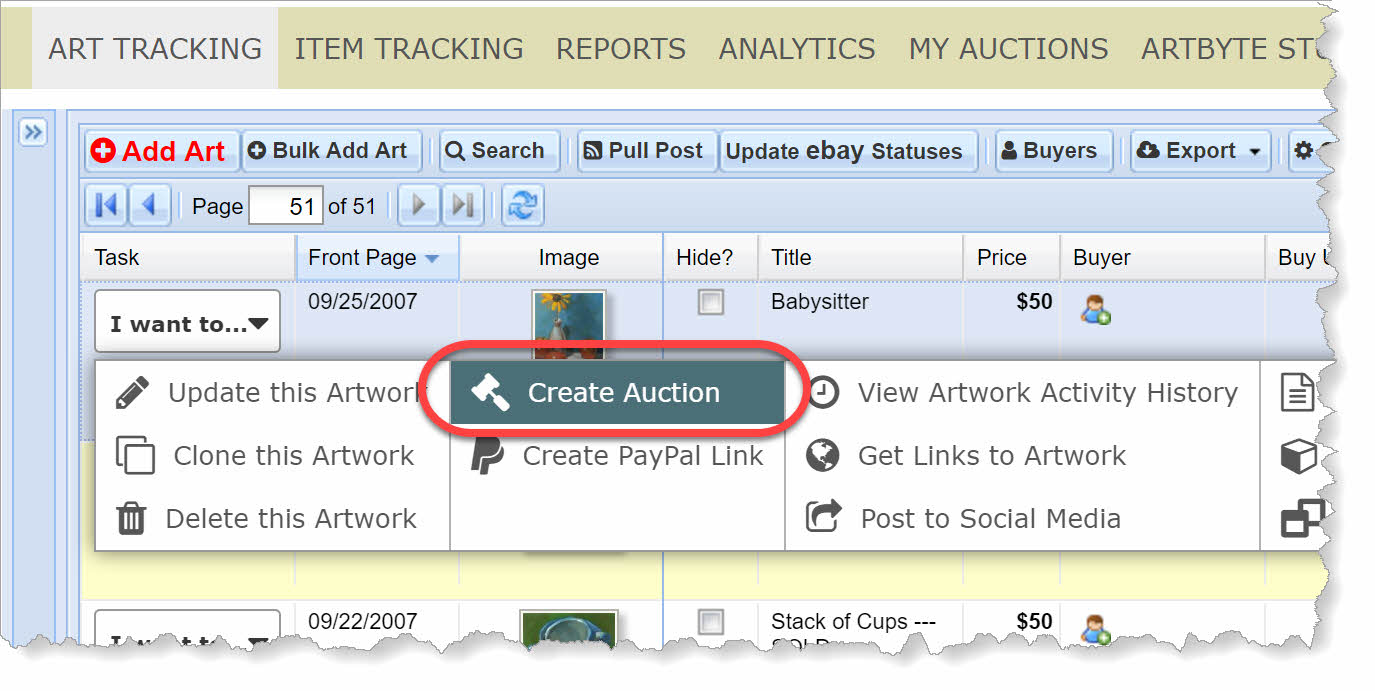
Don't just rely on having your auction in DPW to attract buyers. Its always good set up a new post with a link to the auction in your blog, if you have one, or on your website, when you create your auction. In fact, you should include your DPW Auction link wherever you show your work! This way, your buyers who follow you, will know where to go to buy your painting. Read this help article on how to create and pull a post, and then get the DPW Auction URL to put back in the post. Step 1. Click the Create/Edit Auction Icon in the left-most Task grid column.
If you already have a DPW Auction for the painting, this icon will have a little pencil in place of the plus sign and clicking it will allow you to edit the existing auction. Step 2. Fill in the DPW Auction form that opens.
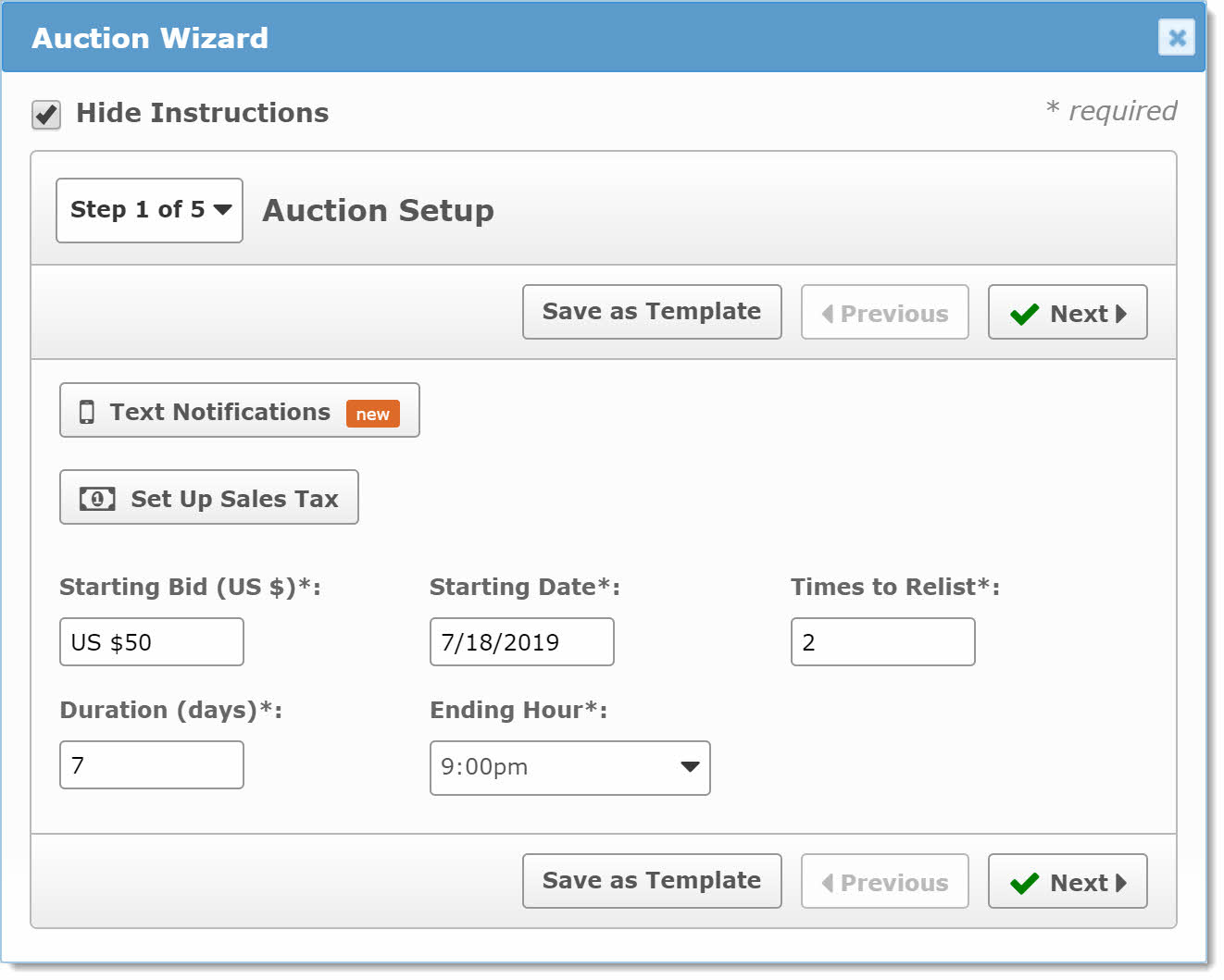
Fill in required values When you create a DPW Auction, you will be telling DPW at what amount do you want bidding to begin, when the auction will start, and how many days you want the auction to last (between 3 and 7). You also specify at what time you want the auction to end. Pick a time you believe is convenient for the majority or your buyers. Then, tell DPW how many times to automatically re-list (restart the auction) when the auction ends without a bid. You can choose zero to three times. After the third time, you can manually re-list an auction on your my Auctions tab for 50ยข each additional relisting. Upload high resolution images
If DPW didn't pull or you didn't upload a high resolution image (read this article), then you can upload one in the auction form. As explained in the help article, the image file size should be smaller than 1 megabyte (mb) with a resolution, to enable the zoom feature of 600 to 1,000 pixels tall or wide. Once you do upload a high resolution image, or if you already have one in DPW, then a preview link will appear that you can click to preview the zoom effect. Upload an additional image
You can also upload an optional additional image of your painting, which will appear on the auction page for your buyers to view. Most often this is your painting in a frame, to give buyers an idea of how it would look. There is no need to upload a close up of the main image, since that is what the zoom is for, if you have uploaded a high resolution image. The zoom feature and preview link work the same for the additional as with the main image. Scroll down The auction form is a long form, so be sure to scroll down as you fill it out. Submit Finally, when done, click the Submit button. If you have missed filling in any required values (fields with red outlines and * in the label) then an error message will appear. Read it carefully since it will tell you what information you are missing. When all errors are corrected you can click the Submit button again. If the Start Date for your auction is today, then it will begin immediately. Otherwise it will begin on the day you selected. Save as a Template When the form is completely filled out and before clicking the Submit button, you can click the Save as Template button, if you like, which will save the current form values as a template for all new actions. This is for your convenience. You will be able to change these values, as needed. As with the Submit button, an error message will appear if you have not filled in all the required values. DPW will fill in the Price in the Art Tracking grid When selling a painting through a DPW Auction, do not fill in the Price value in the Art Tracking grid for the painting. DPW will automatically populate this value with the highest bid, as bidding progresses. When your painting sells, DPW will mark it as sold. The Sale is through PayPal DPW Auctions use your PayPal Account, which you specify by entering your PayPal email address when you create a DPW Auction. DPW manages the auction and bidding, however the transaction is only between you and the buyer. DPW bills you once each month for any auction listing and commission fees. DPW creates a PayPal button for you, which will be available to the winning bidder both on the auction page and in the email they receive when the auction ends. You can read more about DPW Auctions here. |
Attachments
There are no attachments for this article.
|
How to add a DPW Auction link to your Blogger post.
Viewed 3096 times since Wed, Jun 15, 2011
0100. New DPW Member: Getting Started Guide
Viewed 15384 times since Thu, Mar 31, 2011
How do I set up Sales Tax to be automatically calculated?
Viewed 2729 times since Thu, Aug 18, 2011
Recommended Browsers
Viewed 1971 times since Thu, Mar 31, 2011
How do I mark my paintings as sold?
Viewed 2619 times since Tue, Mar 29, 2011
What are DPW Auctions and how much do they cost?
Viewed 3479 times since Tue, Apr 19, 2011
DPW Auction FAQ
Viewed 7141 times since Tue, May 31, 2011
My painting sold, how do I contact my buyer?
Viewed 2522 times since Fri, Apr 1, 2011
0700. How to Have DPW Automatically Manage your Buyers and Payments
Viewed 3934 times since Sun, Jul 22, 2012
Tips for Selling Online
Viewed 9928 times since Wed, Jul 13, 2011
|